 |
| 

| | | |
|
The connection details panel lists details about the current or last connection in a column to the left of the interactive widgets and tables.
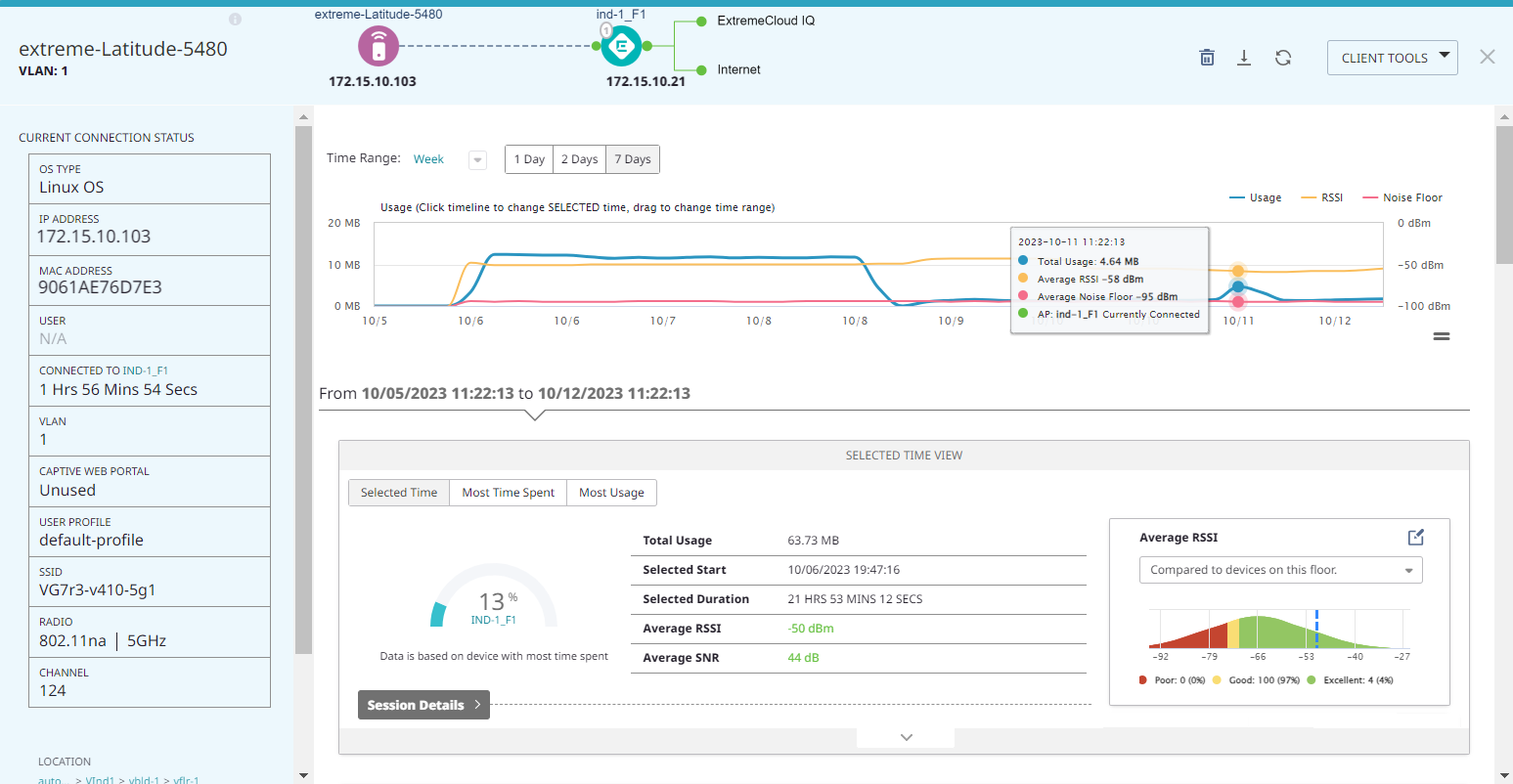
The initial graph displays information about data usage, RSSI, and the noise floor. Use the Time Range menu to change the time period. Select from the following options:
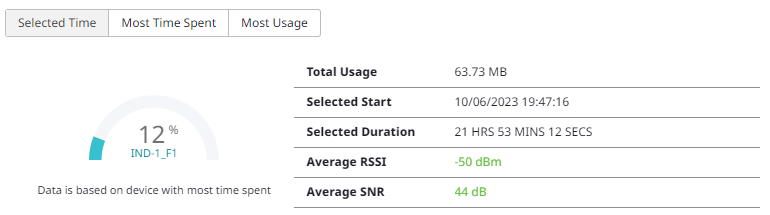
Select one of the tabs to display relevant information:
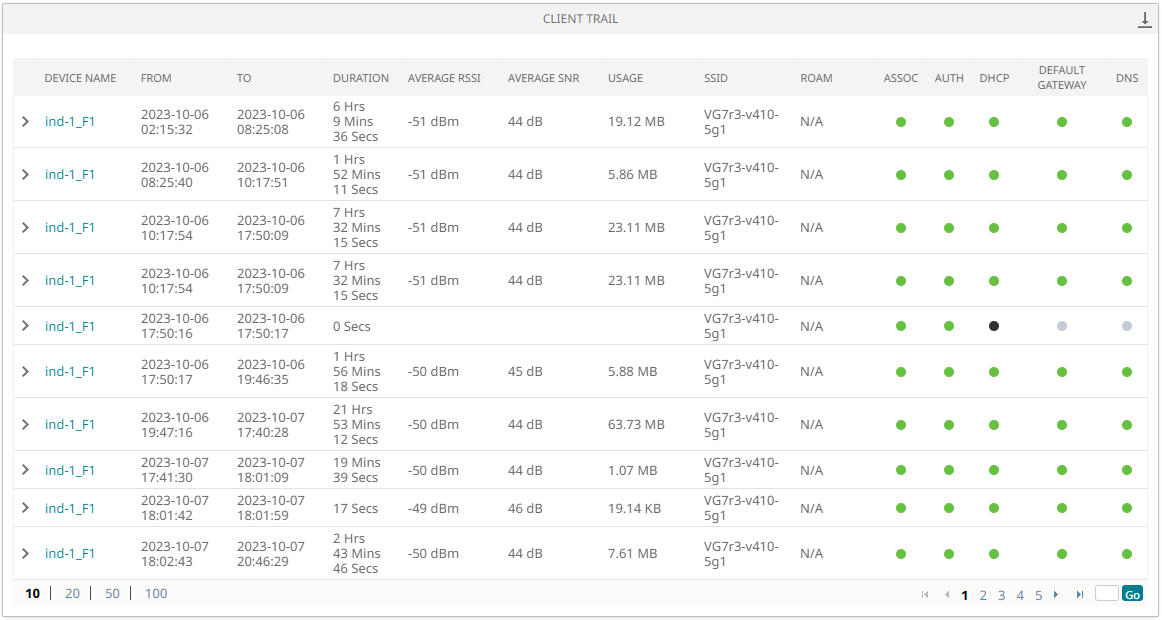
The CLIENT TRAIL table displays information about device connections. Display 10, 20, 50, or 100 results per page. Navigate pages by selecting the page number, or enter a page number and select Go. Color-coded connection status icons provide at-a-glance status information. Mouse over the icons for descriptions.
The TROUBLESHOOT SESSIONS table displays in-progress and completed troubleshooting sessions.

The CLIENTS ISSUES table displays client issues. Filter the issues with the following options:
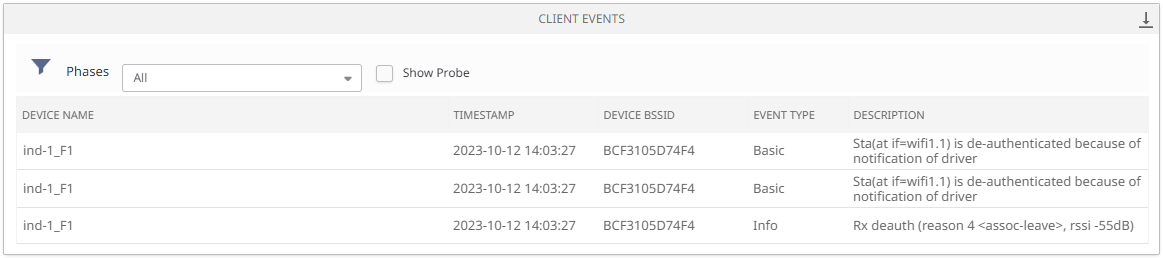
The CLIENT EVENTS table displays client events. Filter the events according to phase:
To download the results as a CSV file, select  .
.
The NETWORK USAGE section displays usage information in an interactive graph and Top 10 Apps widget. Mouse over points on the graph for details. From the hamburger menu, choose from the following options:
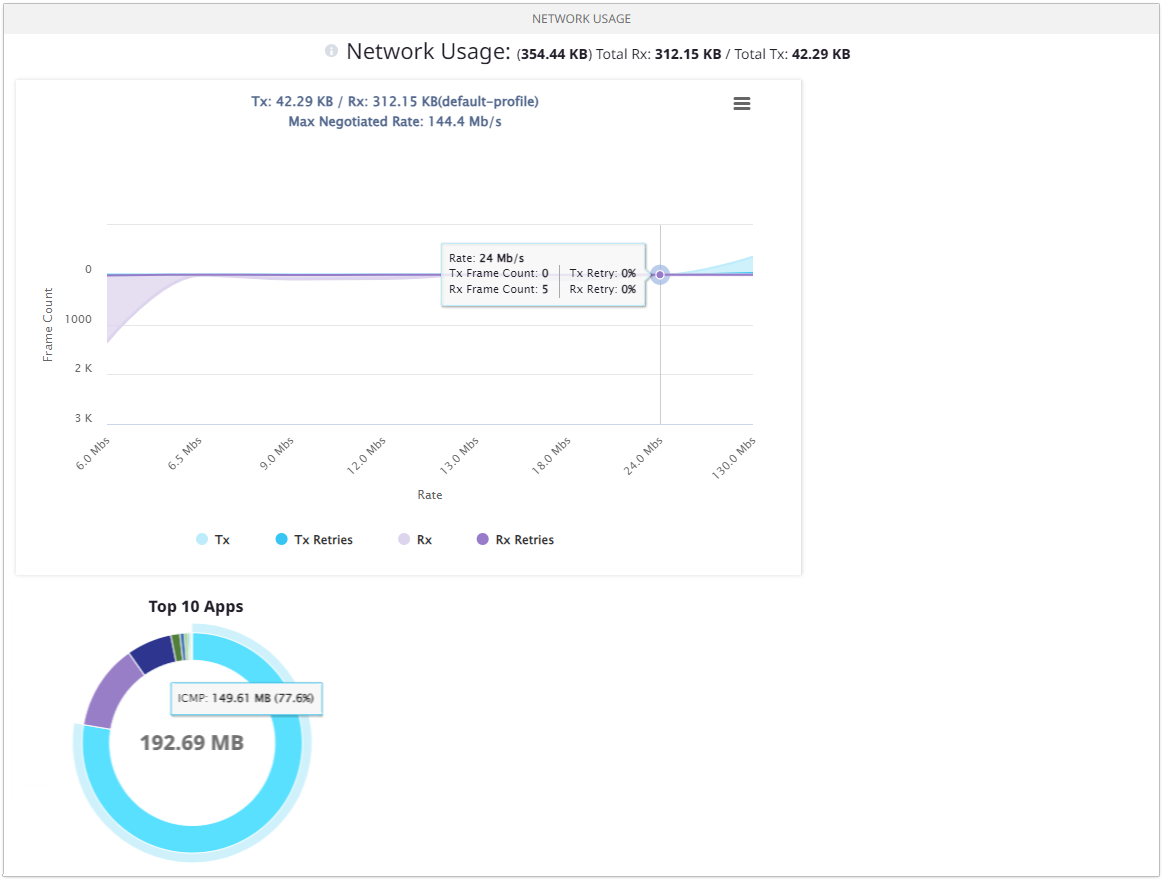
Mouse over the Top 10 Apps widget to display information about app usage.
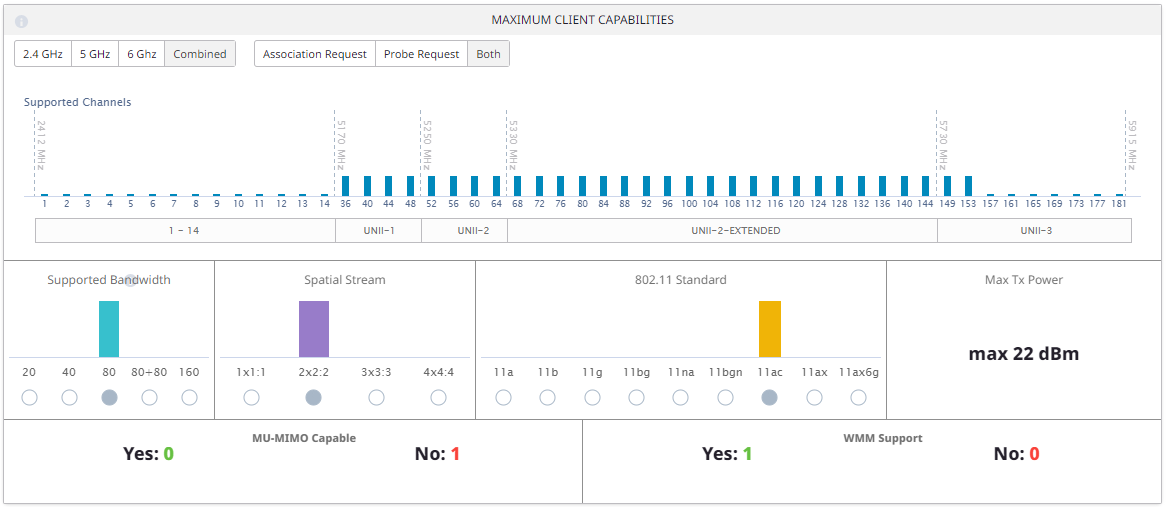
The MAXIMUM CLIENT CAPABILITIES widget displays the maximum client capabilities for all 2.4 and 5 GHz Wi-Fi clients connected to the AP during the selected period.
Copyright © 2026 Extreme Networks. All rights reserved. Published February 17, 2026.